
Beginner’s Guide · Microsoft Excel
Excel in Accounting: Basic Use That Actually Makes Sense
Everything you need to start managing your numbers confidently — no finance degree required.
Let me be honest with you. When I first opened Excel to manage my business finances, I stared at that blank grid for a good five minutes wondering what I was supposed to do. It felt like showing up to a kitchen and not knowing where the knives were. But here’s the thing — once you understand the basic logic of how Excel works for accounting, it becomes one of the most powerful and freeing tools you’ll ever use.
This guide is written for real people — freelancers, small business owners, students, and anyone who handles money and wants to understand where it’s going. We’re covering Excel in accounting from the absolute basics, with plain language, practical steps, and zero fluff.
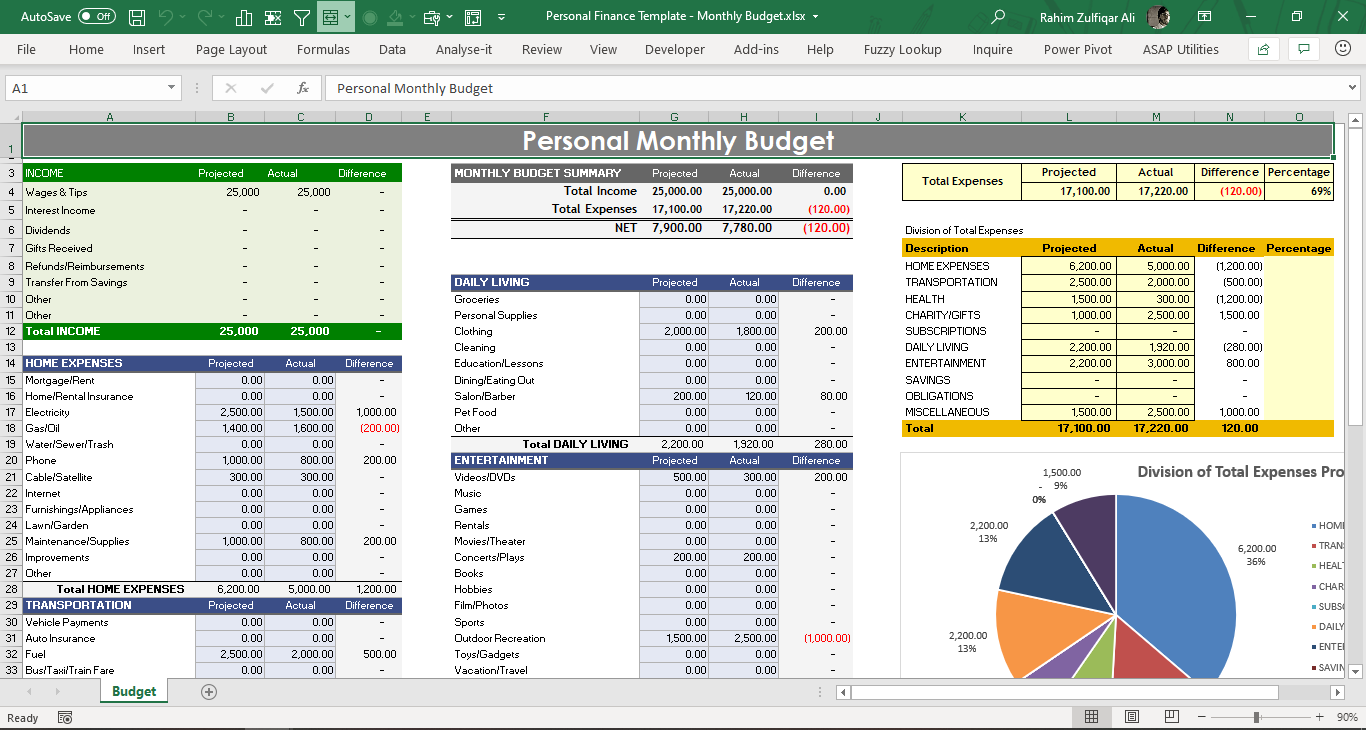
Why Excel Is Still King for Basic Accounting
You might be wondering — in a world full of accounting apps and cloud software, why bother with Excel? The answer is simple: control, cost, and confidence. Excel costs nothing extra if you already have Microsoft Office. There are no monthly fees, no subscriptions eating your budget, and no learning curve that requires you to unlearn everything you know.
According to research by Robert Half, a leading finance staffing firm, 63% of American companies consider Excel an essential accounting tool. Even businesses that use dedicated accounting software still rely on Excel for analysis, reconciliation, and reporting. That tells you everything.
For beginners especially, Excel has another huge advantage: it teaches you how accounting actually works. When you manually enter a transaction, categorize it, and watch your totals update, you understand the numbers in a way that clicking buttons in an app never gives you.
💡 Focus Keyword: The primary keyword for this article is “Excel in accounting” — use it naturally throughout your content, in headings, the first paragraph, image alt text, and the meta description for best SEO results.
Setting Up Your First Accounting Spreadsheet
Before we touch a single formula, let’s talk structure. The way you set up your Excel file determines whether it helps you or confuses you six months from now. Think of your Excel workbook as a filing cabinet with different drawers. Each sheet (or tab) is a drawer for a specific type of financial record.
Here’s a simple structure that works for most beginners:
- Sheet 1 — Transactions: Every payment in or out goes here
- Sheet 2 — Income: All money coming into the business
- Sheet 3 — Expenses: All money going out, sorted by category
- Sheet 4 — Bank Reconciliation: Match your records with bank statements
- Sheet 5 — Summary / P&L: Your profit and loss overview
For each sheet, your column headers are your foundation. A basic transactions sheet should have: Date, Description, Category, Amount In, Amount Out, Balance. That’s honestly all you need to start. Keep it clean, keep it consistent, and never merge cells in your data area — it breaks formulas and causes real headaches.
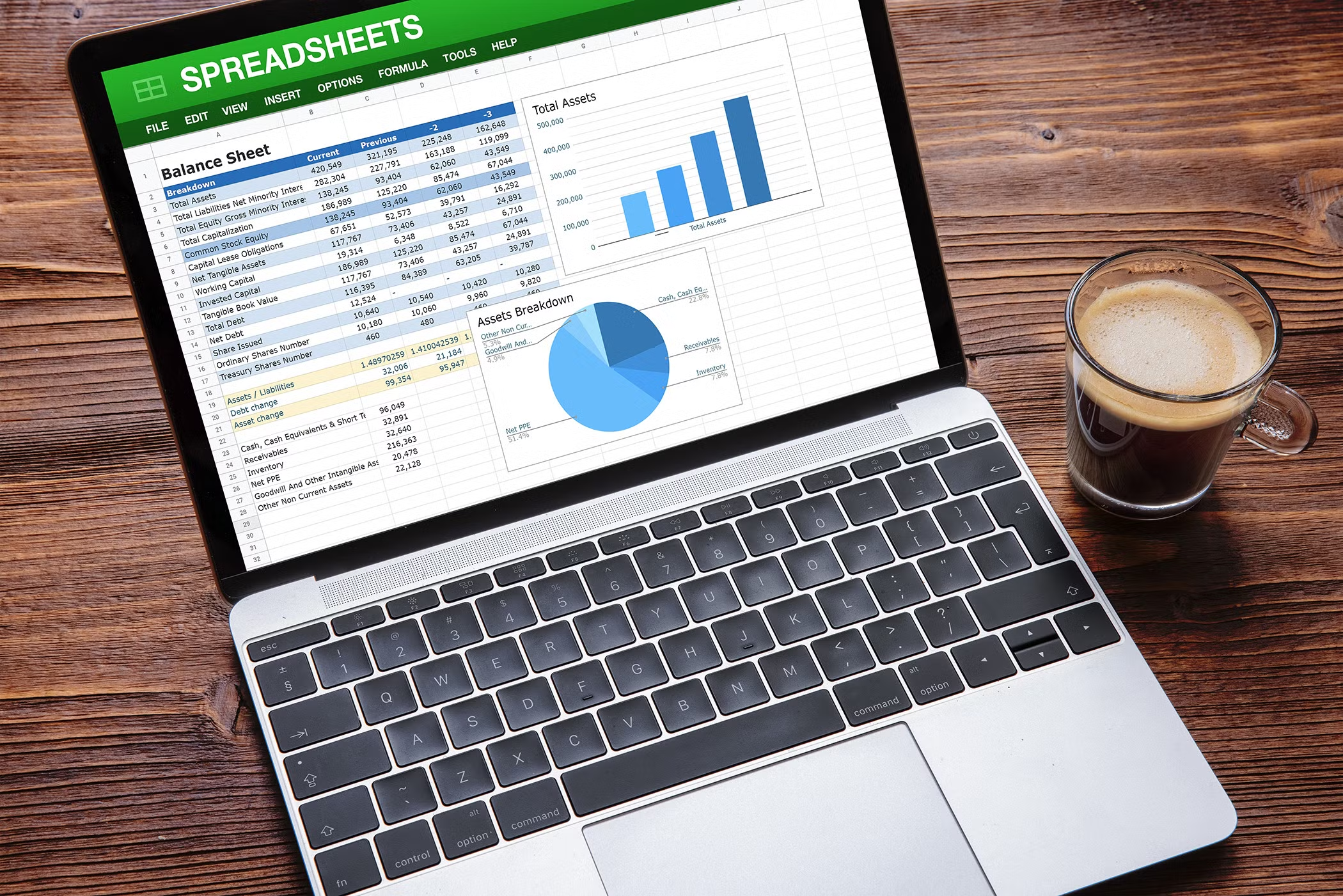
Essential Excel Formulas Every Accounting Beginner Needs
Here’s where beginners get scared. They hear “formulas” and think they need a computer science degree. You don’t. For basic accounting in Excel, you only need about six formulas — and most of them you can learn in under ten minutes.
Formula 1
=SUM(B2:B50)
Adds up a range of numbers. Use it to total income, expenses, or any column of values. The most used formula in all of accounting.
Formula 2
=SUMIF(A:A,”Rent”,B:B)
Adds values only when a condition is met. Perfect for totaling expenses by category — rent, utilities, salaries, etc.
Formula 3
=IF(D2>0,”Income”,”Expense”)
Makes decisions automatically. If a number is positive, label it Income. Negative? Expense. Saves hours of manual sorting.
Formula 4
=AVERAGE(B2:B12)
Calculates the average. Great for understanding your average monthly spend or income across a period.
Formula 5
=VLOOKUP(A2,Sheet2!A:B,2,0)
Pulls data from another sheet. Use it to connect your chart of accounts to transaction entries automatically.
Formula 6
=IFERROR(formula,””)
Prevents ugly error messages from showing when a formula can’t find data. Keeps your spreadsheet looking professional.
Start with SUM and SUMIF. Get comfortable with those two alone and you’ll be able to handle 80% of basic accounting tasks in Excel. The others will come naturally as your needs grow.
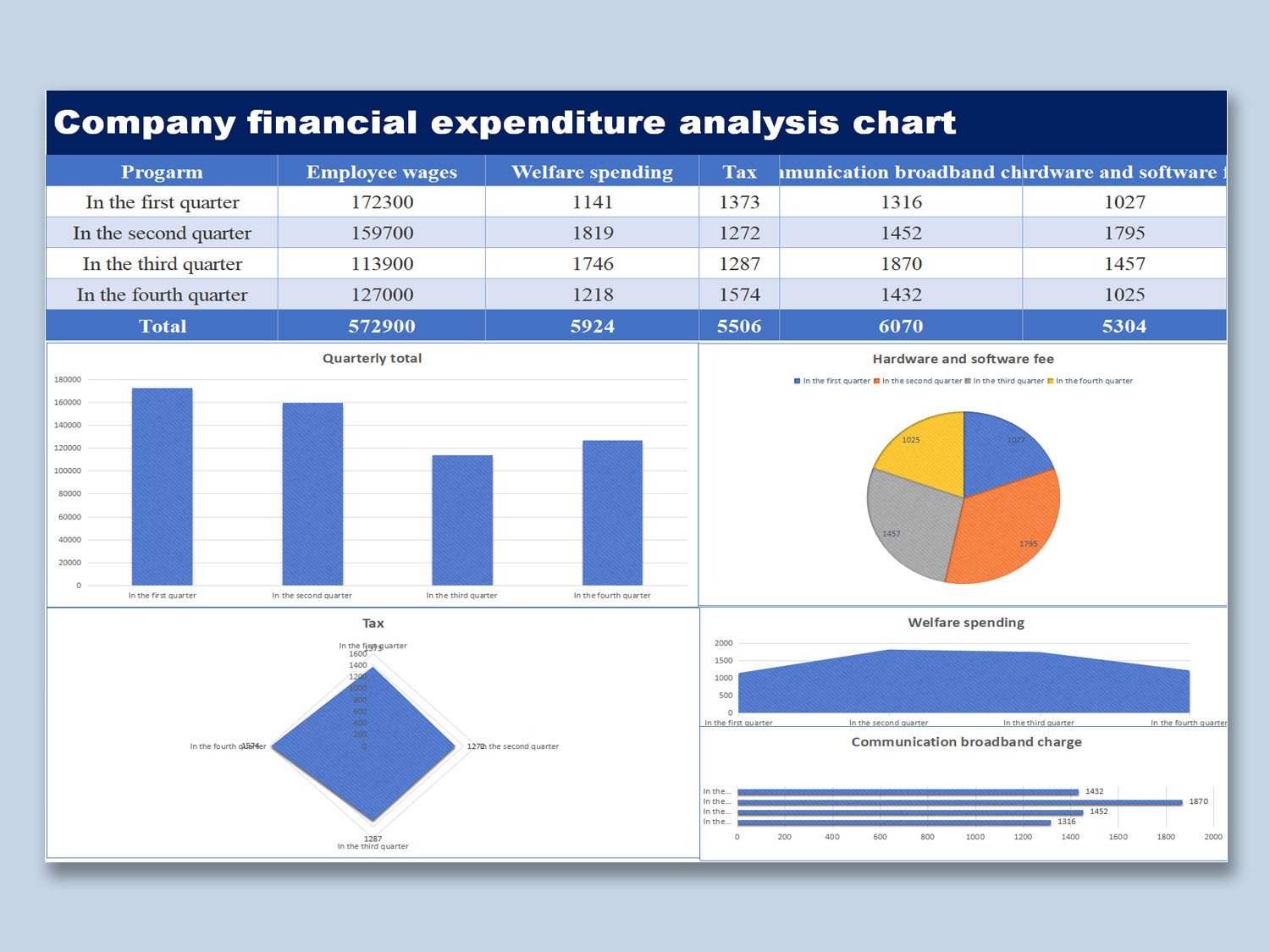
Tracking Income and Expenses Step by Step
This is the core of what most beginners actually need. Forget the fancy stuff for now. Your number one job is to know exactly how much money came in and went out. Everything else builds on top of this.
Here’s a practical approach that actually works:
- Record every transaction the same day it happens. Don’t let things pile up. A week of unrecorded transactions turns into a stressful catch-up session.
- Use consistent category names. If you call it “Office Supplies” today, don’t call it “Stationery” tomorrow. Inconsistency breaks your SUMIF formulas and makes reports useless.
- Separate personal from business immediately. This single habit saves beginners enormous confusion at tax time.
- Keep a running balance column. Use a formula like
=E1+C2-D2where E is balance, C is money in, D is money out. - Reconcile weekly, not monthly. Checking your spreadsheet against your bank statement once a week catches errors while they’re still easy to fix.
How to Create a Basic Profit and Loss Statement in Excel
A Profit and Loss statement — also called a P&L or Income Statement — is simply the answer to one question: “Did I make money this month?” In Excel, you can build one in about twenty minutes once your transactions are properly recorded.
Simple P&L Formula in Excel:
Total Revenue = =SUM(Income!C:C)
Total Expenses = =SUM(Expenses!D:D)
Net Profit / Loss = =TotalRevenue - TotalExpenses
If the result is positive, you made a profit. Negative means a loss. Simple as that.
Format your P&L sheet cleanly. Use bold for totals, accounting number format for all currency cells (right-click → Format Cells → Accounting), and add a clear date range at the top so you always know which period the report covers.
5 Common Mistakes Beginners Make in Excel Accounting
I’ve seen smart people make the same Excel accounting mistakes over and over. The good news is that they’re all completely avoidable once you know about them.
❌ Mistake 1: Mixing numbers and text in the same column
If one cell in your Amount column says “£500 approx”, SUM ignores it completely. Keep data types pure — numbers only in number columns.
❌ Mistake 2: No backup copies
Excel files get corrupted. Computers die. Save a backup to cloud storage (OneDrive, Google Drive) weekly without fail. Losing six months of records is a nightmare you don’t want to live.
❌ Mistake 3: Overwriting formulas with manual numbers
If a formula cell shows the wrong number, the instinct is to type the right number over it. Now your formula is gone, and future updates won’t recalculate. Fix the source data instead.
❌ Mistake 4: No version history
Save new versions monthly — “Accounts_Jan2025.xlsx”, “Accounts_Feb2025.xlsx”. This lets you go back to any previous month without losing current data.
❌ Mistake 5: Skipping bank reconciliation
Your spreadsheet and your bank statement should always agree. If they don’t, there’s a missing transaction, a data entry error, or a fraud risk. Never assume they match — always check.
Useful Excel Features for Accounting You Might Be Ignoring
Beyond formulas, Excel has several built-in tools that can make your accounting work dramatically easier. Most beginners never discover them because they’re buried in menus — but they’re worth finding.
Conditional Formatting: Automatically color cells based on values. Set expenses over £1,000 to turn red so they stand out immediately. Go to Home → Conditional Formatting → Highlight Cells Rules.
AutoFilter: Click on any header row, go to Data → Filter, and you can instantly sort or filter your transactions by category, date, or amount. This is how you answer questions like “What did I spend on travel last quarter?” in seconds.
Freeze Panes: Keep your header row visible as you scroll down through hundreds of transactions. View → Freeze Panes → Freeze Top Row. A small thing that prevents huge confusion.
Pivot Tables: Once you’re comfortable, pivot tables let you summarize thousands of transactions into a clean report in about 30 seconds. Insert → PivotTable. It’s genuinely one of the most powerful tools in Excel.
Data Validation: Force a cell to only accept values from a dropdown list. Use this for category columns so nobody (including future-you) can type inconsistent category names by accident.
Frequently Asked Questions
Q: Can I really do proper accounting in Excel as a complete beginner?
Absolutely. For freelancers, sole traders, and small businesses with straightforward finances, Excel is not just sufficient — it’s often ideal. You’ll need to be consistent and disciplined, but the tool itself is completely accessible to beginners.
Q: Is Excel better than accounting software for small businesses?
It depends on your volume. For under 100 transactions a month, Excel is often more flexible and less expensive. Once you grow beyond that, dedicated software like QuickBooks or Xero handles automation and reporting better. Excel and accounting software aren’t rivals — many professionals use both.
Q: What is the most important Excel formula for accounting?
SUM is the foundation. SUMIF comes right after it for categorized totals. If you only learn two formulas, make it those two. They cover the majority of basic accounting tasks in Excel.
Q: How do I set up a chart of accounts in Excel?
Create a separate sheet with two columns: Account Code and Account Name. Include categories like Revenue, Cost of Goods Sold, Rent, Utilities, Salaries, and so on. Then use VLOOKUP or a dropdown list in your transactions sheet to reference these accounts consistently.
Q: Is Excel used by professional accountants?
Yes — widely and daily. Professional accountants use Excel for analysis, modeling, reconciliation, and reporting even when they work alongside enterprise accounting software. Knowing Excel well is considered a core professional skill in the finance world.

When to Move Beyond Excel
Excel is brilliant for getting started, but it does have limits — and knowing when you’ve hit them is important. Here are honest signs that you need to graduate to dedicated accounting software:
- You’re spending more than 3 hours a week maintaining your spreadsheets
- You’ve hired employees and need payroll functionality
- You’re processing more than 150 transactions per month
- A formula error cost you real money or caused a missed tax payment
- You need multi-user access with permission controls
- Your accountant or tax advisor has asked you to switch
There’s no shame in outgrowing Excel — it means your business is growing. The skills you’ve built using Excel in accounting will make you a far better user of whatever software you move to next, because you’ll understand what’s happening under the hood.
Final Thoughts
Excel in accounting isn’t about being a spreadsheet wizard. It’s about having a clear, honest picture of your money. When you know exactly what came in, what went out, and what’s left — you make better decisions, stress less about tax time, and actually feel in control of your finances.
Start with one sheet. Record today’s transactions. Add the SUM formula. That’s all you need to do today. Next week, add a category column and try SUMIF. Within a month, you’ll have a working accounting system that you built yourself — and that understanding is worth more than any template you could download.
The numbers tell a story. Excel in accounting just helps you read it clearly.
About the Author
This article was written by a finance and accounting specialist with years of experience helping small business owners, freelancers, and students understand how to use Excel in accounting for real-world financial management.