
QuickBooks Basic Guide
Everything a beginner actually needs to know — explained the way a patient friend would, not a manual.
| UPDATED JUNE 2026 | ~12 MIN READ | FILED UNDER: SMALL BUSINESS ACCOUNTING |
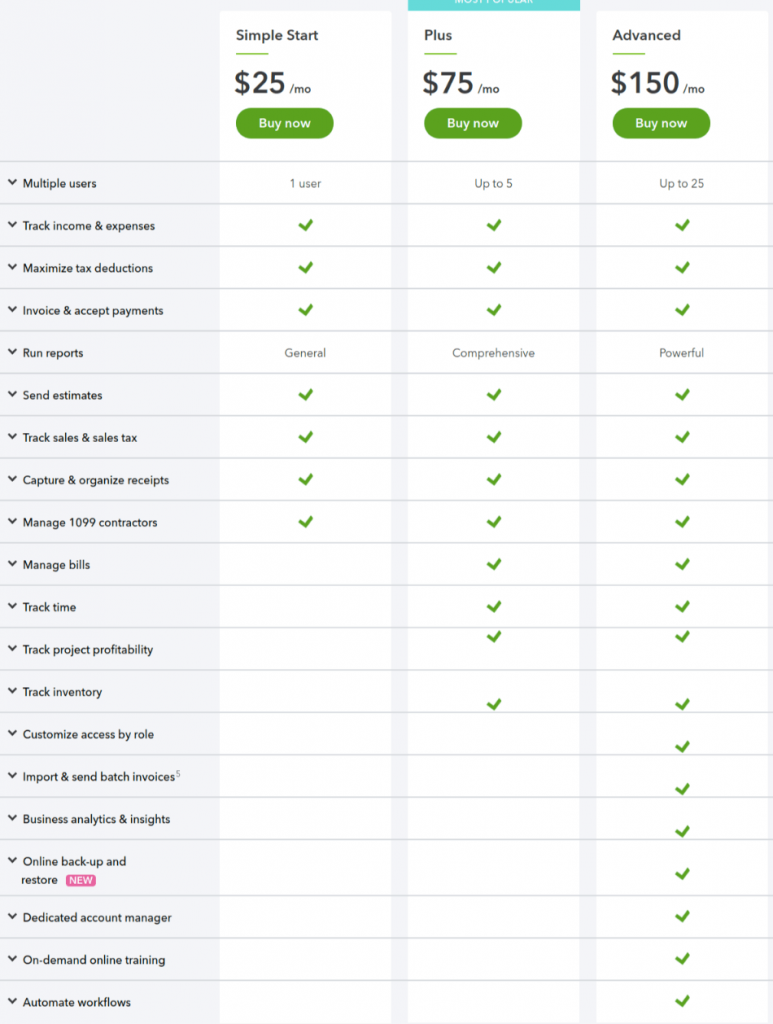
Fig. 1 — The QuickBooks Online dashboard, as seen by absolutely everyone on day one
The first time I opened QuickBooks, I closed the tab within four minutes. There were too many buttons, a sidebar full of words I half-recognized, and a little green “Let’s get started” banner that felt more like a dare than an invitation. If that’s where you are right now, you’re not behind — you’re exactly on schedule.
This guide is the one I wish someone had handed me back then. No jargon dumps, no fifty-tab comparison charts. Just a plain explanation of what QuickBooks actually is, which version makes sense for a beginner, and how to do the handful of things that matter in your first week: setting up your company, sending an invoice, recording an expense, and reading the one report that tells you whether your business is actually making money.
“QuickBooks is, underneath all the buttons, just a digital ledger — the modern version of the notebook a shopkeeper used to keep behind the counter.”
What Is QuickBooks, Really?
Strip away the marketing language and QuickBooks is a digital ledger. Money in, money out, who owes what, what’s owed back. The difference from the paper version is that QuickBooks does the arithmetic, sorts everything into tax categories, and can produce a financial report in about four seconds instead of four hours.
It’s made by Intuit, the same company behind TurboTax, and it has become the default accounting software for small businesses largely because everyone else already knows it. Your accountant probably uses it. Your bookkeeper, if you hire one later, will expect it. That ecosystem effect is a big part of why QuickBooks keeps winning even when competitors are cheaper.
Online vs. Desktop — You Probably Want Online
This trips up almost every beginner, so let’s settle it early. QuickBooks Desktop is software installed on one computer. It still exists, and Intuit still supports renewals, but pricing just climbed again — a single-user license rose from $999 to $1,149 a year, with multi-user seats increasing from $200 to $230 each. Intuit stopped selling new Desktop Plus subscriptions back in 2024, which tells you which direction the company is steering people.
QuickBooks Online, by contrast, lives in your browser. You can log in from a laptop, give your accountant access without emailing a file back and forth, and check your numbers from your phone in a coffee line. For a beginner starting today, Online is the practical choice in essentially every case. The rest of this guide focuses on it.
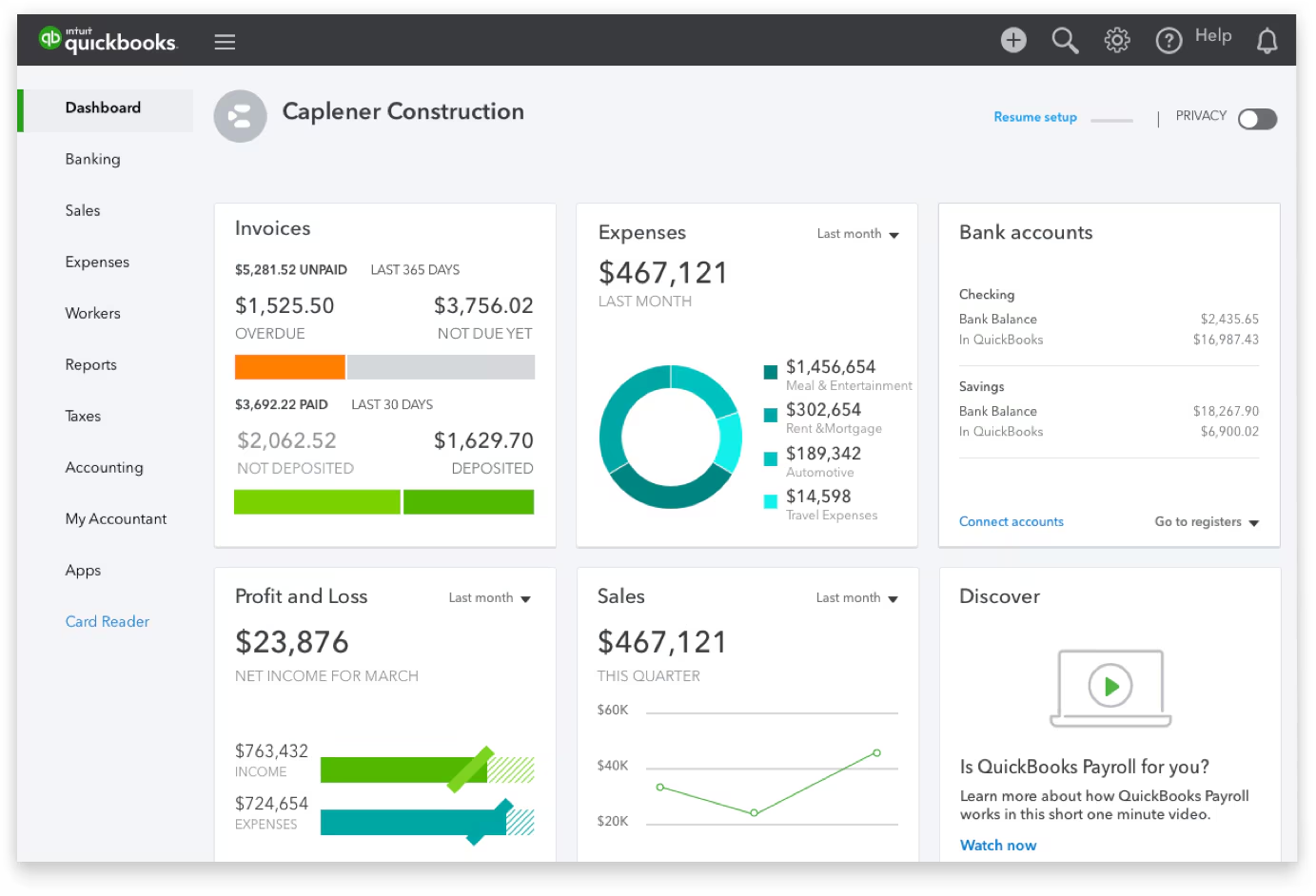
Fig. 2 — The five QuickBooks Online tiers, side by side
The Plans, Explained Without the Sales Pitch
As of mid-2026, QuickBooks Online runs five tiers, and pricing has climbed noticeably over the past two years — Intuit raised rates again in 2025, and most users are now paying 15 to 25 percent more than before that increase.
| PLAN | ≈ PRICE | BEST FOR |
|---|---|---|
| Solopreneur | $20/mo | One-person side income, no employees |
| Simple Start | $38/mo | Most beginners — full accounting, one user |
| Essentials | $75/mo | Up to 3 users, bill management, time tracking |
| Plus | $115/mo | Inventory + project profitability, 5 users |
| Advanced | $275/mo | Established businesses, 25 users, custom reports |
Prices current as of June 2026 and reviewed quarterly — Intuit adjusts rates periodically.
⚠ Fine Print Worth Reading
Payroll is never included in any tier above. It’s a separate add-on starting around $50/month plus roughly $6.50 per employee. And that “50% off your first three months” banner you’ll see everywhere? Real, but your bill doubles in month four — don’t budget around the discounted number.
Setting Up Your Company File: The First 20 Minutes
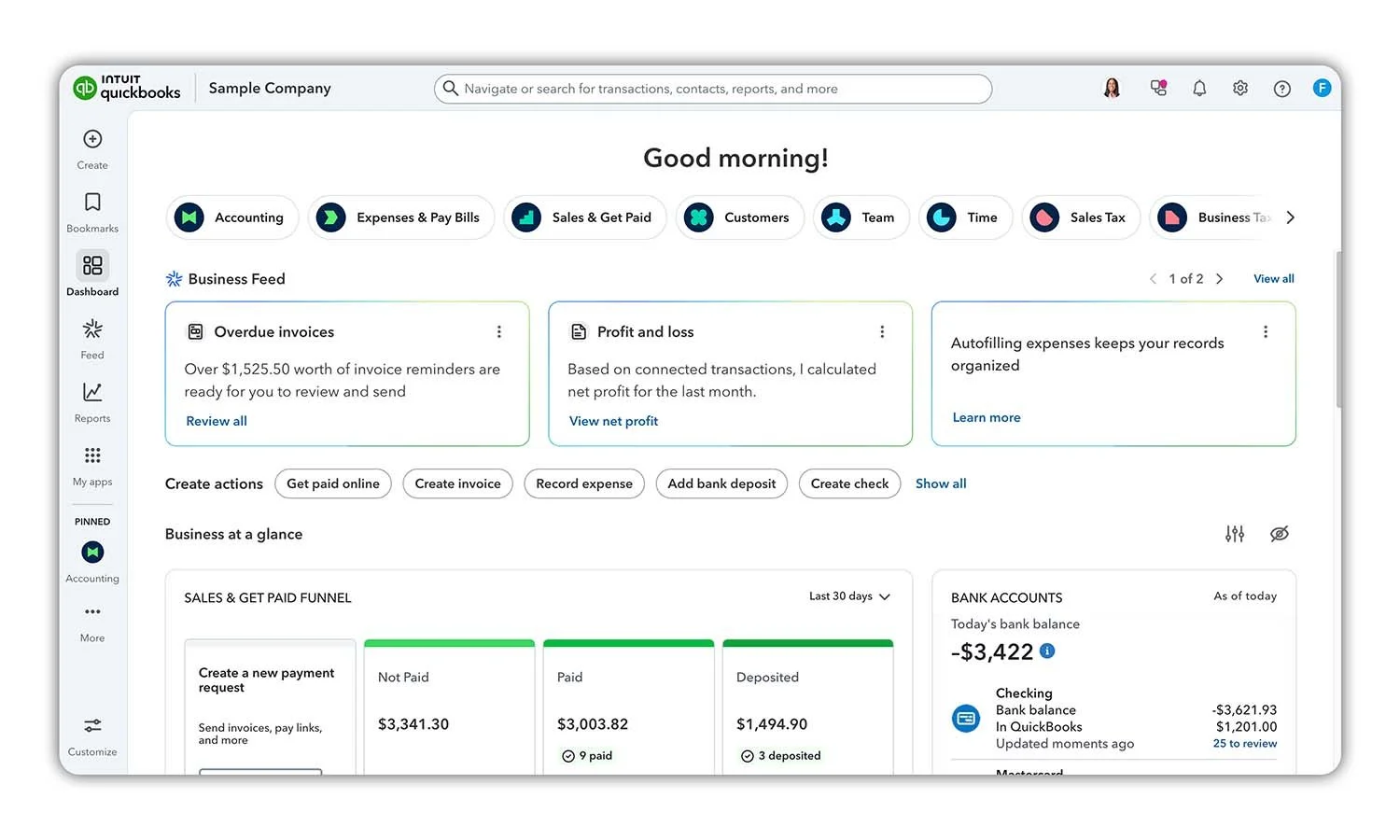
Fig. 3 — The setup interview, four questions in
Once you’ve picked a plan, QuickBooks walks you through a setup interview. It looks intimidating because it asks a lot of questions back to back, but only a handful actually matter:
| 01 | Pick your business structure. Sole proprietor, LLC, partnership, corporation — whatever you legally registered as. This shapes your tax categories later, so get it right even if you’re not sure what it means yet. |
| 02 | Set your fiscal year start. Unless your accountant told you otherwise, leave it as January. Don’t overthink it. |
| 03 | Connect a bank account. This is the step that makes QuickBooks actually useful. Once connected, transactions flow in automatically instead of you typing them by hand. |
| 04 | Let QuickBooks build your chart of accounts. Don’t build this from scratch on day one — QuickBooks auto-generates a sensible starting list based on your business type. |
That’s genuinely it. Customizing invoice templates, adding your logo, inviting your accountant — all of that can wait until week two.
The Chart of Accounts, Demystified
This phrase scares more beginners than any other in QuickBooks, so let’s take the mystery out of it. A chart of accounts is just a categorized list. Every account falls into one of five buckets:
| Income | Expense | Asset | Liability | Equity |
When you buy a $40 ream of printer paper, you’re not just spending money — you’re recording a transaction in your “Office Supplies” expense account. Do that consistently for a year and QuickBooks can generate a profit-and-loss statement without you lifting a finger. You don’t need to memorize the five categories. You just need to know that every time QuickBooks asks “what category is this,” it’s asking you to slot the transaction into one of these buckets.
Creating Your First Invoice
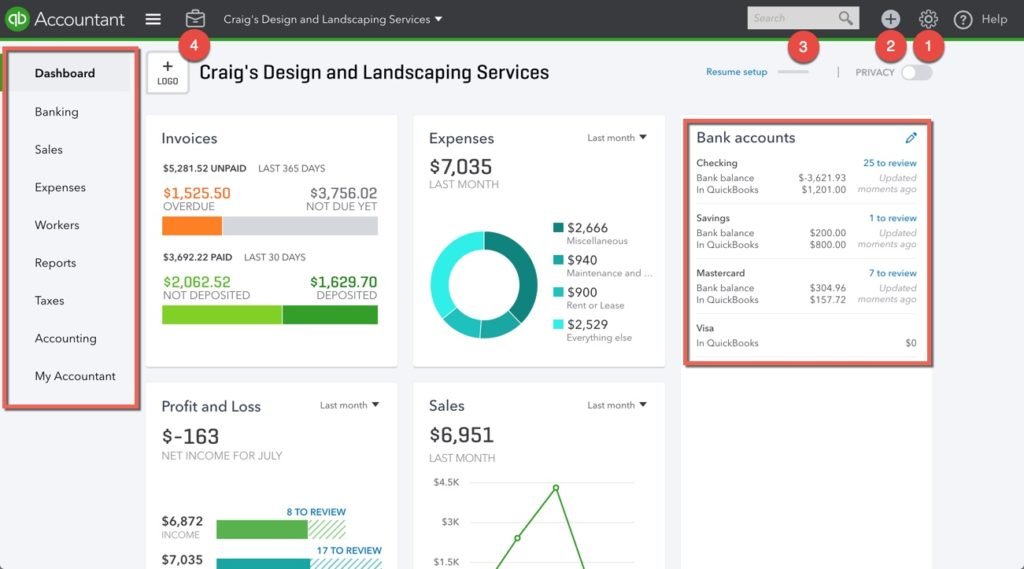
Fig. 4 — A finished invoice, ready to send
Invoicing is usually the first real task a new user does, and it’s also the one QuickBooks has polished the most. From the home screen, look for the “+ New” button, then choose Invoice:
- Pick the customer from the dropdown — or click “Add new” if it’s their first invoice with you.
- Add the product or service line, the quantity, and the rate. QuickBooks does the multiplication.
- Set the payment terms — due on receipt, net 15, net 30, whatever you’ve agreed to.
- Preview it, then either email it directly from QuickBooks or download the PDF.
If you enable QuickBooks Payments, your invoices get a “Pay Now” button that lets clients pay by card or bank transfer right from the email. It comes with a processing fee, typically around 2.9% plus a small flat fee per transaction, but for most freelancers, getting paid three days faster is worth that cost.
Recording Expenses Without Losing Your Mind
Here’s where most beginners either fall in love with QuickBooks or start resenting it, depending on whether they set up bank sync correctly. Once your bank account is connected, every debit card swipe and outgoing transfer shows up automatically in a queue. Your job isn’t to type anything — it’s to confirm the category QuickBooks suggests, or correct it if it guessed wrong.
Over time, QuickBooks learns your patterns. Categorize a transaction from “Office Depot” as Office Supplies once, and the software will quietly suggest the same category every time that vendor shows up again. This is the single biggest time-saver in the platform, and the reason connecting your bank account on day one matters so much.
Reconciling Your Bank Account
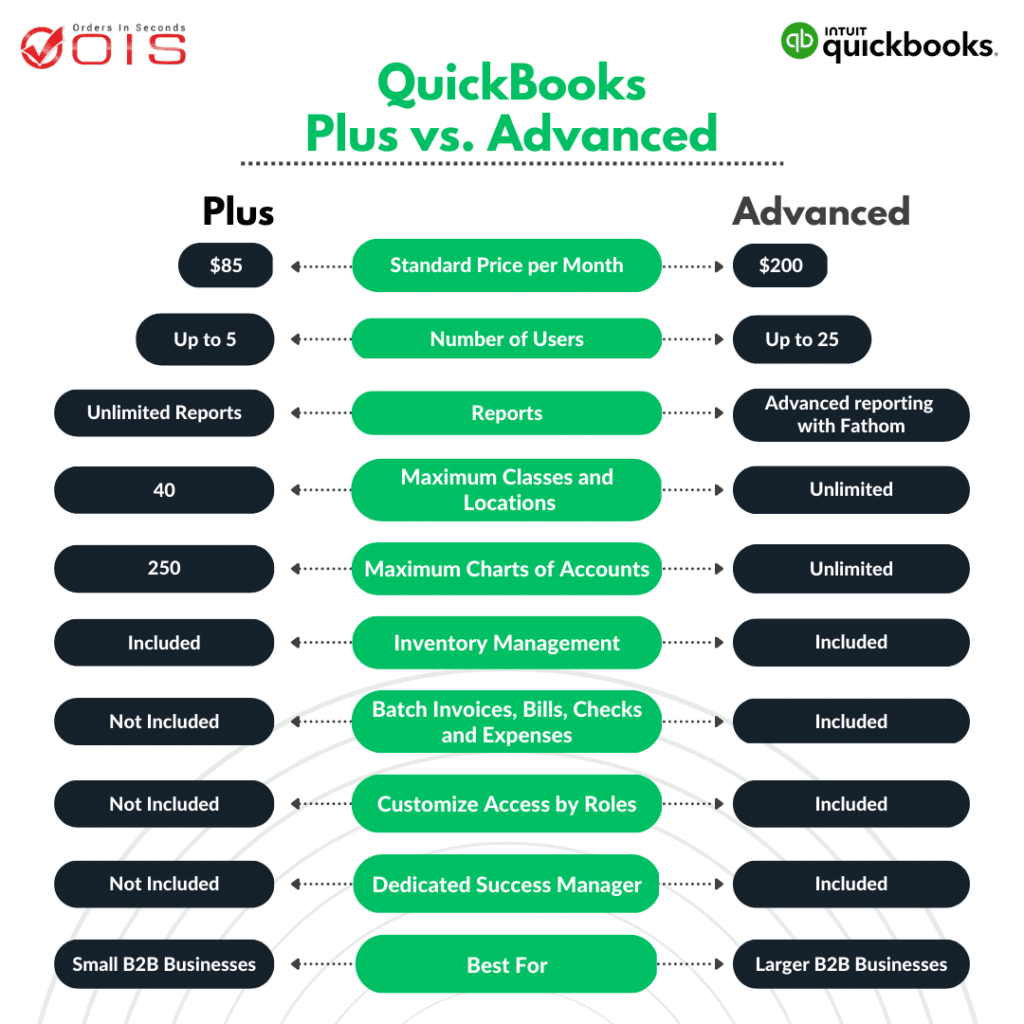
Fig. 5 — A clean reconciliation: the goal is always $0.00
Reconciliation sounds technical, but it’s really just one question: does the balance in QuickBooks match the balance on your actual bank statement? Once a month, open the Reconcile tool, enter your statement’s ending balance, and check off the transactions that match. When everything lines up, the difference shown should land on exactly $0.00.
If it doesn’t, the usual culprits are a missed transaction, a duplicate entry, or a transaction categorized to the wrong account. Tedious the first couple of times — by month three it takes about ten minutes and becomes the closest thing to peace of mind that bookkeeping offers.
The One Report Worth Checking Every Week
QuickBooks can generate dozens of reports, and that abundance overwhelms beginners more than it helps them. Ignore most of them at first. The Profit and Loss report — sometimes labeled an income statement — is the one that actually tells you whether your business is healthy. It lists everything you earned, everything you spent, and the difference between the two, broken down by category.
Pull it up weekly, even for thirty seconds. You’ll start noticing patterns: a subscription you forgot you were paying for, a month where supply costs spiked, a client who consistently brings in more revenue than the rest combined. That awareness is worth more than any feature QuickBooks has buried in its settings menu.
Common Beginner Mistakes Worth Avoiding
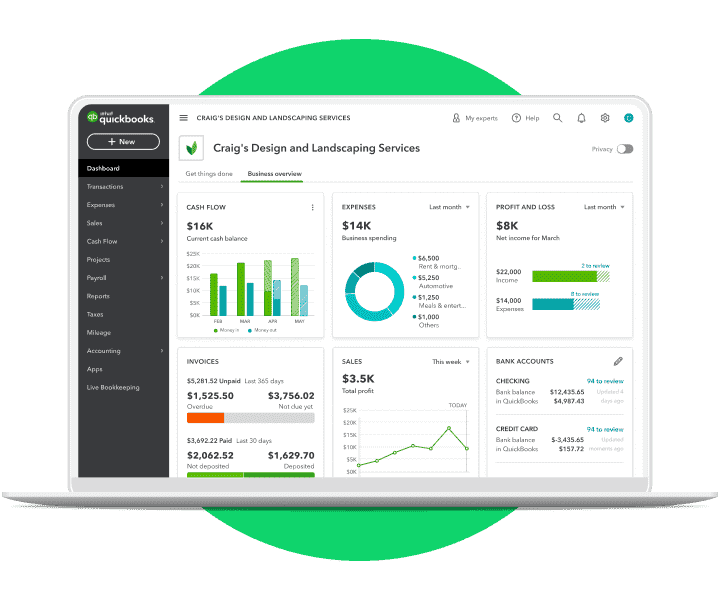
Fig. 6 — Five minutes of review now saves an afternoon later
| Recording the same expense twice. Happens most when you manually enter a bill and then also import it from the bank feed. Check for duplicates before confirming. |
| Skipping reconciliation for months at a time. Small errors compound. A five-minute fix in week one can become an afternoon-long untangle by month six. |
| Choosing the wrong plan and outgrowing it within weeks. If you already know you’ll need teammate access or bill tracking, start one tier higher. Downgrading is rare; upgrading mid-year is common. |
| Ignoring the free trial’s fine print. Taking the 30-day trial usually forfeits the 50%-off promotional rate. You generally can’t have both — decide in advance which matters more. |
| Never inviting an accountant, even for free. QuickBooks allows accountant collaborator access at no extra cost on any paid plan. One annual check-in can catch mistakes you wouldn’t know to look for. |
Frequently Asked Questions
Is QuickBooks hard to learn as a complete beginner?
Not as hard as the interface makes it look on day one. Most people are comfortable sending invoices and categorizing expenses within their first week, and confident with reconciliation and reports within a month of regular use.
Which QuickBooks plan should a beginner actually buy?
For most new small businesses, Simple Start hits the right balance — full accounting features, invoicing, and reporting, without paying for multi-user access or inventory tools you don’t need yet.
Does QuickBooks offer a free version?
No permanent free plan exists. There’s a 30-day free trial, though taking it typically means giving up the separate 50%-off introductory pricing offer.
Can I switch plans later if I outgrow my current one?
Yes — upgrading from Simple Start to Essentials, Plus, or Advanced is a straightforward in-app process, and your historical data carries over with you.
Do I need an accountant to use QuickBooks?
No, but it helps. QuickBooks is designed for non-accountants to operate day-to-day. Many small business owners run it solo and only bring in a professional once a year around tax time.
Closing the Ledger
You don’t need to master QuickBooks before you start using it — you need to do four things consistently: connect your bank, send your invoices, glance at your Profit and Loss report once a week, and reconcile once a month. Everything else can wait until you’ve actually outgrown the basics. The goal was never to use every feature. It was to know, at any given moment, exactly where your money stands.